Apple CarPlay Troubleshooting: Fix Every Issue
CarPlay not working? Fix connection issues, app problems, and AI box errors fast. Includes WheelPal and CarBridge compatibility tips.
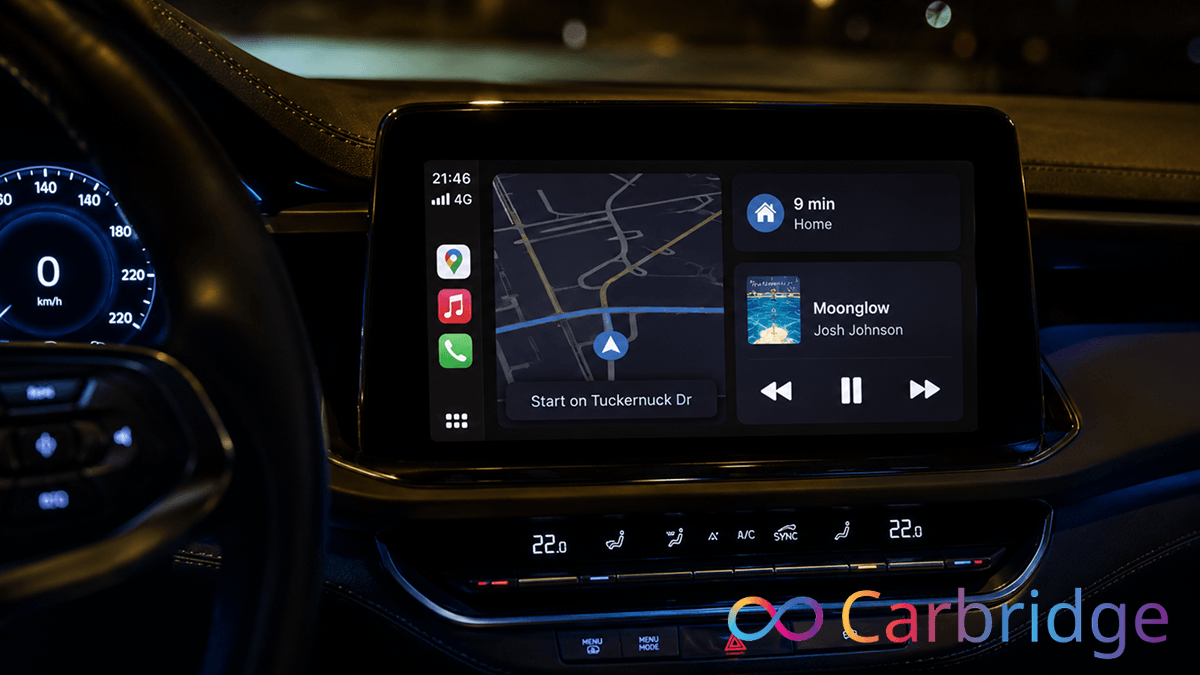
You are sitting in your car, ready to start your commute, but your infotainment screen remains blank or displays a "Device Not Supported" error. This is a common frustration for many drivers who rely on their vehicle for more than just transportation. Most apple carplay not working issues fall into three distinct categories,
- physical connection failures
- App compatibility restrictions
- External AI box hardware bugs
Whether you are dealing with a carplay not connecting error on a brand new 2025 Corolla or a persistent black screen on an older system, this guide provides the specific fixes you need. This carplay troubleshooting manual covers everything from basic cable checks to advanced AI box configurations to get your maps and music back on track immediately.
Why Is CarPlay Not Working?
Understanding the root cause is the first step in any carplay troubleshooting process. Most problems are triggered by four main factors,
- Faulty cables
- Incorrect iPhone permissions
- Limited app compatibility for video content
- Hardware handshake issues with AI boxes.
Software bugs in the operating system or unstable Bluetooth connections often lead to a black screen.
| Symptom | Likely Cause | Primary Fix |
|---|---|---|
| Black Screen | Software bug or loose cable | Restart iPhone and Head Unit |
| Icon is Grayed Out | Permissions or Siri disabled | Enable Siri in Settings |
| Frequent Drops | Damaged cable or Wi-Fi interference | Replace with Apple-certified cable |
| App Not Showing | Apple restriction or outdated app | Use WheelPal for restricted apps |
| AI Box Not Loading | Incompatible USB port or power issue | Switch to a high-power data port |
Before proceeding to advanced fixes, it is vital to check your CarBridge iOS compatibility to ensure your specific software version supports the apps you want to run.
How to Fix CarPlay Connection Problems
Wired CarPlay Not Connecting
Physical connections are the most common failure point for wired systems. During our testing on an iPhone 14 Pro running iOS 16.7.2 connected to a 2021 Toyota Corolla with Toyota Touch 2, we found that third-party charging cables often failed to initiate the data handshake required for CarPlay.
- Inspect and Replace the Cable. You must use an Apple-certified Lightning or USB-C cable that specifically supports data transfer. During our test, the screen initially displayed a "Device Not Supported" alert when using a generic store-brand cable, but the error vanished immediately upon switching to an official Apple cord.
- Verify the USB Port. Many vehicles have multiple USB ports, but often only one is wired for data transfer and CarPlay. On the Toyota Touch 2 system, the second USB port in the center console only charged the phone without triggering the CarPlay icon on the dashboard.
- Check Screen Time Restrictions. Navigate to Settings > Screen Time > Content & Privacy Restrictions. When toggled off during testing, the CarPlay option immediately appeared on the dashboard after a brief two-second delay.
- Perform a Force Restart. For the iPhone 14 Pro, quickly press Volume Up, then Volume Down, and then hold the Side button until the Apple logo appears. The Corolla's head unit screen went black and showed the manufacturer logo during the reboot, which cleared the temporary handshake error.
- Forget and Reconnect. Go to Settings > General > CarPlay, select your car, and tap Forget This Car. The iPhone 14 Pro then prompted to "Allow" the connection again, successfully establishing a fresh and stable pairing.
Wireless CarPlay Not Connecting
Wireless CarPlay requires a stable handshake between both Bluetooth and Wi-Fi. If you are experiencing frequent drops, it is often because the iPhone is trying to join a different Wi-Fi network while you are in the car. Note that AI box wireless issues are covered in a dedicated section below.
- Toggle Radio Connections. Turn Bluetooth and Wi-Fi off and then back on in your iPhone settings. This forces the device to search for the car's signal again rather than clinging to a weak home Wi-Fi signal.
- Enable Auto-Join. Go to Settings > Wi-Fi, find your car's network name, and ensure Auto-Join is toggled on. If this is off, the car may fail to reconnect automatically when you start the engine.
- Check Siri Settings. CarPlay will not initiate wirelessly if Siri is disabled. Ensure "Allow Siri When Locked" is enabled under Settings > Siri & Search.
- Verify Wi-Fi Hotspot Conflicts. Apple CarPlay cannot be used wirelessly while the phone is connected to the vehicle's Wi-Fi hotspot. Ensure you are not using the car's internet for other devices while attempting to run wireless CarPlay.
Last resort: Go to Settings > General > Transfer or Reset iPhone > Reset > Reset Network Settings. Note that this will erase all saved Wi-Fi passwords and Bluetooth pairings.
Third-Party Apps Not Working on CarPlay
Apple natively blocks video-streaming apps like YouTube and Netflix on CarPlay for safety reasons. If an app is not showing up, it is likely because it is restricted or needs a specialized installer.You can use below methods for avoid problems and errors.
Using WheelPal - Method 1 (Recommended)
WheelPal is the most effective way to troubleshoot and install apps that Apple usually restricts. It serves as a bridge for users who want a more personalized experience without deep technical knowledge.
- Download the Installer. Visit app.wheelpal.app on your iPhone to download the configuration profile.
- Verify Compatibility. Open the app and let it scan your iOS version to determine which apps can be bridged to your CarPlay screen.
- Install Selected Apps. Follow the on-screen prompts to add the apps you need, such as YouTube or custom navigation tools.
If you want to watch video content specifically, check our YouTube on CarPlay guide for the latest stable methods.
CarBridge for Third-Party Apps (iOS 13 to 16.7.7 Only)
CarBridge is a popular tool for mirroring any app from your iPhone to your car display. However, it has a strict compatibility ceiling. CarBridge supports iOS 13.0 through iOS 16.7.7 only.
If you have updated to iOS 17 or iOS 26, CarBridge will not work. For these newer versions, use WheelPal as an alternative. If you are on a compatible older firmware, you can install CarBridge to unlock your full app library. Android users looking for similar functionality should visit our guide on CarBridge for Android.
AI Box CarPlay Not Working
An AI box is an external hardware device that plugs into your car's USB port to provide a standalone Android interface or wireless CarPlay functionality. During our testing with the Carlinkit Tbox Plus (Android 13.0), we noted specific power and connection requirements.
With Carlinkit Tbox, you can get exclusive experience while driving.
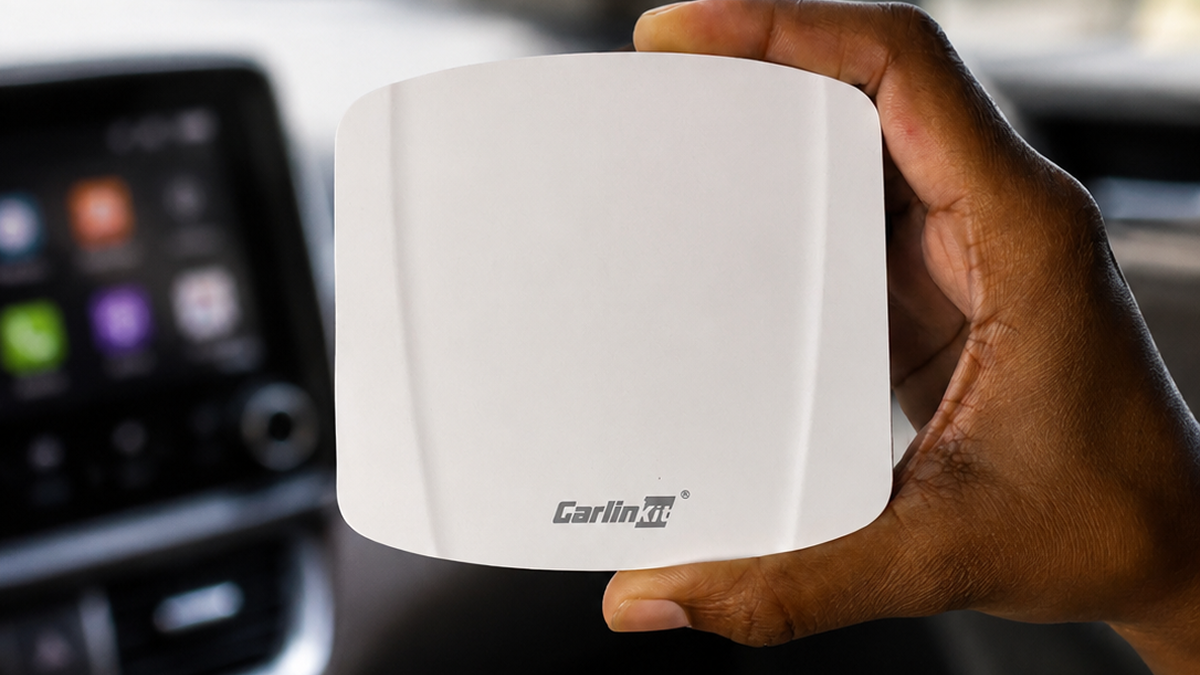
AI Box Not Showing CarPlay Screen
- Check Data Port Compatibility. Ensure the AI box is plugged into the specific USB port designated for data transfer, often marked with a smartphone icon. Many charge-only ports do not provide the necessary data lane for the AI box to communicate with the car's head unit.
- Swap the USB Cable. AI boxes are sensitive to cable quality. If the included cable fails, use a high-quality data-certified USB-C to USB-A cable to ensure a stable handshake.
- Confirm Automatic Reconnection. Wireless CarPlay adapters usually connect automatically once you are in the vehicle. If the screen remains black, manually selecting the CarPlay icon on your car's home screen can force the connection.
- Wait for the Boot Cycle. AI boxes take significantly longer to boot than native CarPlay. Wait at least 45 to 60 seconds after starting the car for the Android interface to initialize.
- Verify Device Recognition. Check Settings > General > CarPlay on your iPhone to see if the AI box is recognized as a connected vehicle.
AI Box Keeps Disconnecting
- Disable iPhone Wi-Fi Auto-Join. If your iPhone tries to connect to a different known Wi-Fi network while the box is trying to establish its own connection, it can cause a disconnect loop. Turn off Wi-Fi Auto-Join for other nearby networks.
- Restart the Device. Unplug the AI box, wait 30 seconds, and plug it back in to refresh the entire system memory.
- Update Firmware. Visit shop.carplayhacks.com to find the latest firmware files for your specific AI box model.
- Use the Hardware Reset. If your specific AI box model has a physical pinhole, use a paperclip to press the reset button to restore factory defaults.
CarPlay Issues After iOS Update
Apple frequently updates security protocols, which can break existing connections. If your system failed after an overnight update, do not panic.
- Perform a "Forget This Car" Reset. This is the most effective post-update fix because it clears stale Bluetooth and Wi-Fi tokens that the new iOS version might find invalid or corrupted.
- Check CarBridge Compatibility. New iOS updates often patch the exploits that allow CarBridge to function.
- Re-download WheelPal. An iOS update can revoke the enterprise certificates used by third-party installers. Deleting and re-installing WheelPal from app.wheelpal.app refreshes these certificates and restores app functionality.
Frequently Asked Questions
Why does CarPlay keep disconnecting?
Intermittent disconnections are almost always caused by a failing physical cable or wireless signal interference. Ensure you are using an Apple-certified cable and that your iPhone is not attempting to join other Wi-Fi networks while driving.
Can I use YouTube on CarPlay?
Native CarPlay does not support YouTube for safety reasons. To watch videos, you must use WheelPal to install a supported video player or use an AI box that runs a standalone Android system.
Does CarBridge work on iOS 26?
No. CarBridge only supports iOS versions 13.0 through 16.7.7. If you are on iOS 17 or later, CarBridge is not compatible and you should use WheelPal instead.
Why is my AI box not showing CarPlay?
This usually happens if the AI box is not receiving enough data through the USB port or if the cable is damaged. Ensure you are using the designated data port in your vehicle and check for firmware updates at shop.carplayhacks.com.
Does CarPlay require Siri?
Yes. Siri must be enabled for CarPlay to function. Ensure that "Listen for Hey Siri" and "Allow Siri When Locked" are both toggled on in your iPhone settings.
CarPlay relies on a perfect handshake between your iPhone, your cable, and your car's computer. Most carplay troubleshooting issues can be resolved by simply replacing a cable or resetting your permissions. If you want to expand your CarPlay features beyond Apple's limits, use WheelPal available at app.wheelpal.app. For the best hardware to upgrade your existing system, explore the latest AI box models at shop.carplayhacks.com.